Your buttons are losing you customers
Someone finds your business at 9pm. They want to know if you serve their area. Your page has a 'Get started' button, a phone number, and a booking link.
None of them tell them where to ask that simple question. They might book the wrong service. They might wait until tomorrow. Or they might just leave.
That's a customer you already had — and lost.
Start with what they're actually trying to do
Look at your last few inquiries. What were people trying to figure out before they called?
A cleaner's customer wants to know: 'Do you clean apartments in my area?'
A repair shop's customer wants to know: 'Do you fix this brand?'
A returning customer just wants to save your number.
Different questions, different next steps. Write down one common question in your customer's words, then open your page on your phone and try to answer it.
Four situations — and the button that fits each one
Not every customer needs the same thing. Match the button to what they're actually doing.
Before and after
Before: your button says 'Get started.' It opens a form with no explanation of what happens next.
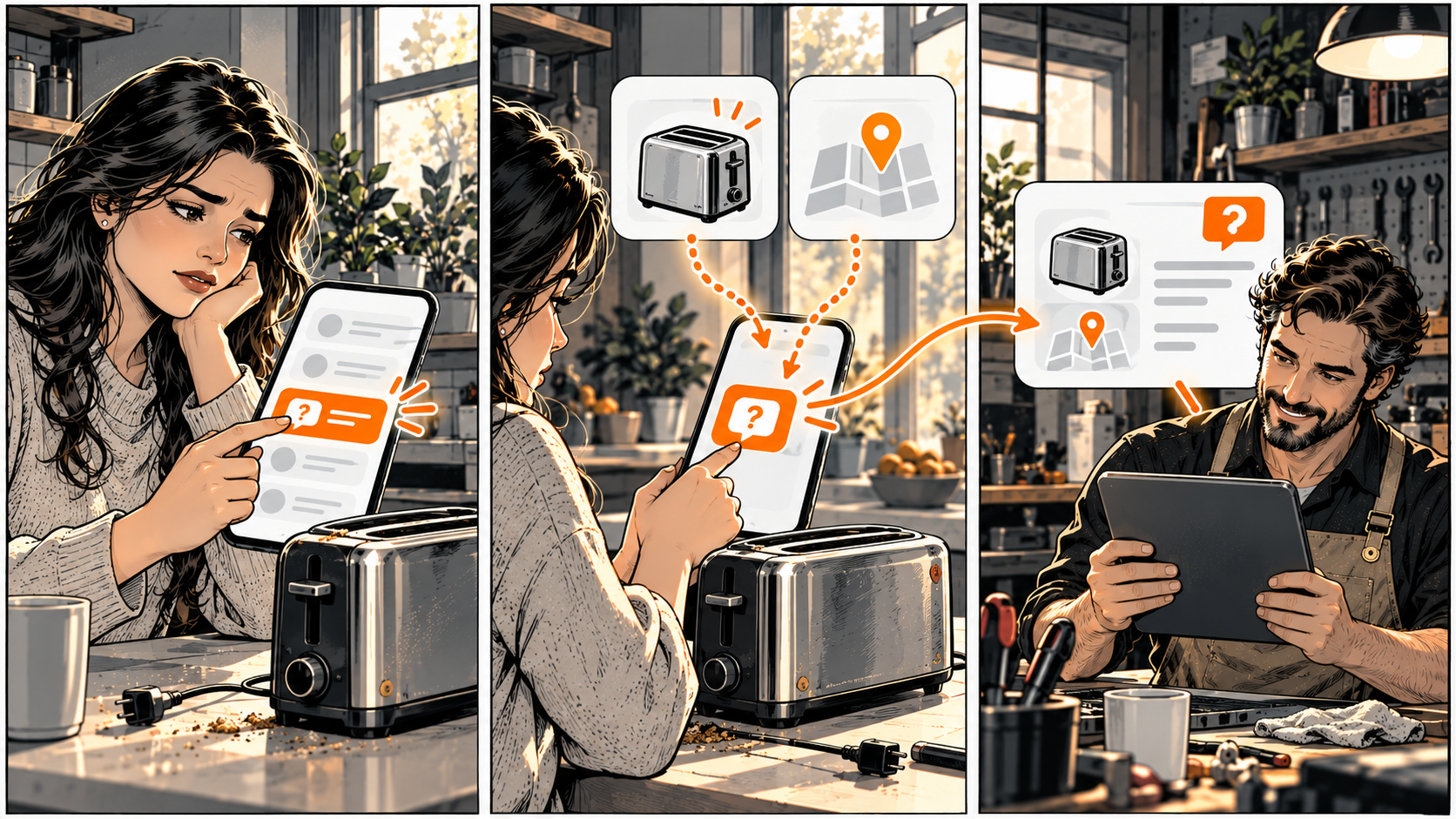
After: your button says 'Ask whether we repair your appliance.' Next to it: 'Tell us the appliance type and your area. We'll confirm whether it's a job we handle before discussing an appointment.'
The form asks only what's needed for that first answer. You post a response time you can actually meet.
Now the customer knows what to ask, what to share, and what happens next.
Clear labels help people find what they need
The W3C's accessibility guidelines say link labels should tell people where they're going — especially for visitors using screen readers or assistive tools.
'View our service area' is clear. Five links all saying 'Learn more' is not.
Test the whole path
A clear button is just the start. Click it. Does it open the right business? Does the form match what the button promised? Can you go back without losing your place?
Do this on your phone — not your laptop. The screen you edit on is bigger and easier than what your customer actually sees.
If you test a form, use a method you've agreed on. Don't accidentally book a real appointment or message a real customer.
Where your DiagBizCard fits
Your DiagBizCard gives customers one place to find your contact details, leave a review, and save your info. Keep those details current. Test each link as if you were the customer.
Keep a separate booking page when you need one. Just make sure someone handles the inquiries that come through.
The Six-Line Next Step Check
Pick one page and one customer task. Copy these six lines into your notes and answer them while following the path on your phone:
Example: Checking if you fix their appliance / 'Ask about appliance repair' / correct inquiry form / fit confirmed before booking / owner checks during posted hours / replace 'Get started' with a clear label.
What your answers tell you:
- Broken destination or wrong business? Fix that first.
- Destination works but label is misleading? Fix the label.
- Customer can submit but nobody replies? Assign that responsibility before inviting more inquiries.
- Everything works? Ask someone who doesn't know your business to try it without help. Watch where they get stuck.
Keep your answers in your own notes. No email or customer details needed.
Your next step: run this check on one real customer task, make the smallest fix that helps, then test the same path again.
Common questions
Frequently asked questions
Should every customer see the same button?
No. Start with the main task for that page. Keep other useful actions visible but don't give them all equal weight. Someone looking for your address shouldn't have to start a sales conversation to find it.
Do I need to rebuild my whole website?
Usually not. The first fix is smaller — correct a destination, name an action accurately, explain what happens next, or assign the reply. Run the check before deciding a rebuild is needed.
How do I know if the change helped?
First, confirm the task actually works end to end. Then watch for fewer repeated questions about what happens next. Keep a short note of what you changed and what feedback you hear.
What if I can't reply outside business hours?
Say when the channel is checked and what people should expect. Offer an alternative if you have one. Don't call an auto-reply a personal answer or promise 24/7 service you can't deliver.